Introduction
Ptyxis is a modern terminal emulator built with GTK4 and libadwaita, designed to integrate seamlessly with the GNOME desktop. It was created to meet the demands of contemporary software development workflows, with standout container support for tools like Podman, Distrobox, and Toolbox. Quickly gaining popularity, it has become the default terminal for Fedora and upcoming Ubuntu releases. After using it for several months, here are two features I find truly impressive.
Tabs and Overview
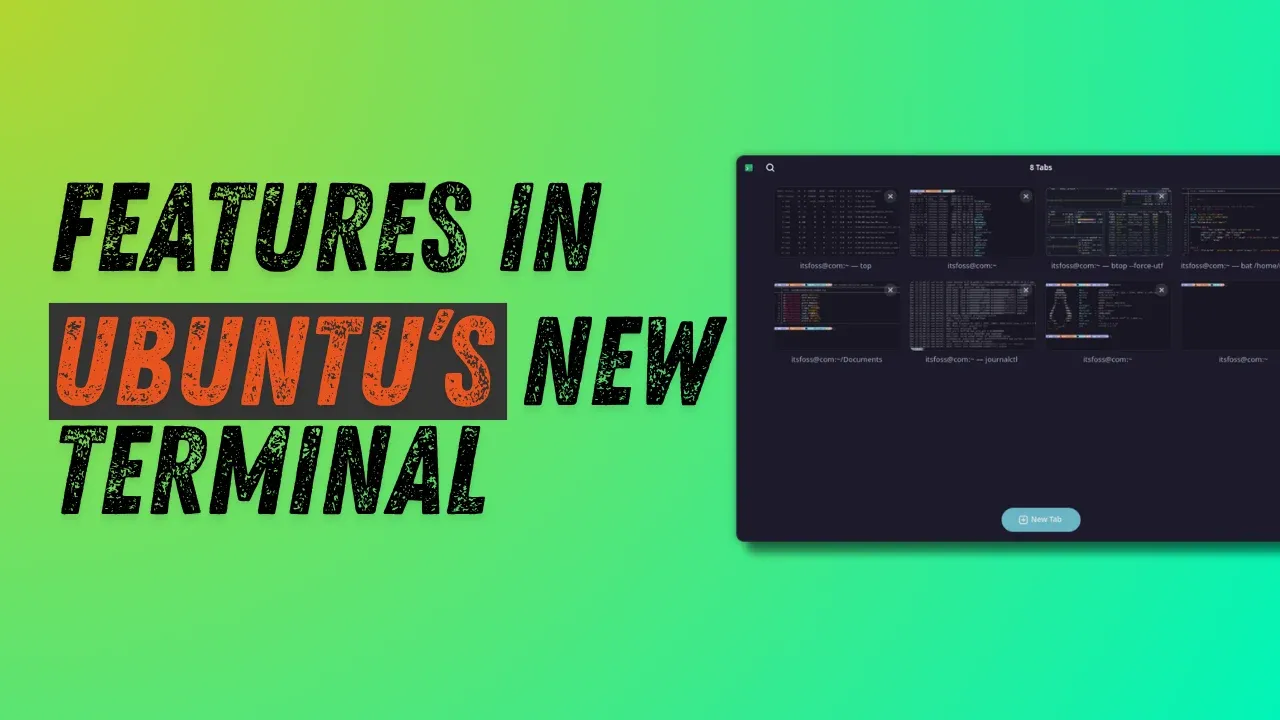
When you first launch Ptyxis, the tab and overview system immediately catches your attention. Unlike traditional terminals such as GNOME Terminal or Kitty that use a simple tab bar, Ptyxis offers a visual tab selector reminiscent of the GNOME Activities overview.
Viewing and Managing Tabs
With multiple tabs open, click the Show open tabs button in the top‑right of the title bar. This opens an interface where each tab shows its title and a small preview, letting you see exactly what’s running before switching back. You can drag and drop tabs to rearrange them, pin important tabs to keep them at the top, and even rename tabs for better organization.
Renaming and Searching Tabs
Right‑click a tab in the overview and select Set title. You can prepend a name to the default process or set a completely custom title. Once named, use the search button in the top‑left of the title bar to quickly find the right tab—extremely useful when juggling many sessions at once.
Color Schemes
Ptyxis supports a wide array of preset color schemes. Open the preferences window from the three‑dot menu in the top‑right, go to the Appearance tab, and click Show all palettes. You’ll see a neat preview for each scheme, and the selected theme is applied immediately—making personalization both intuitive and instant.
Customization and Practical Use
The range of palettes caters to different tastes, from light themes to dark, high‑contrast options. This flexibility helps reduce eye strain during long coding sessions or matches the terminal’s look to your desktop theme. Because the preview updates live, you can experiment without opening a separate settings dialog.
Conclusion
Ptyxis brings thoughtful design to everyday terminal tasks. The tab overview system and extensive color scheme support are just two reasons it’s becoming a favorite among Linux users, especially in Fedora and upcoming Ubuntu releases. Whether you’re a developer or a power user, these features make Ptyxis a worthy upgrade.